[Fulfillment-Product Integration Management] Integrate with 10x10 Products

After integrating with 10x10, you must match the product information entered in each shopping mall with the products registered in Bopul for proper product integration.
Refer to the guide below to check if the product information values are correctly matched.
Log in to the 10x10 [Partner Page] and go to the product management menu.

- Product Number
In Product Management - Registered Product List, you can check the “Product Code.” This is entered as the “Product Number” for products integrated with the Bopul service. The number is automatically assigned during product registration.

2. Seller Product Code
In Product Registration - During product registration, you can check the “Vendor Product Code.” This is entered as the “Seller Product Code” for products integrated with the Bopul service.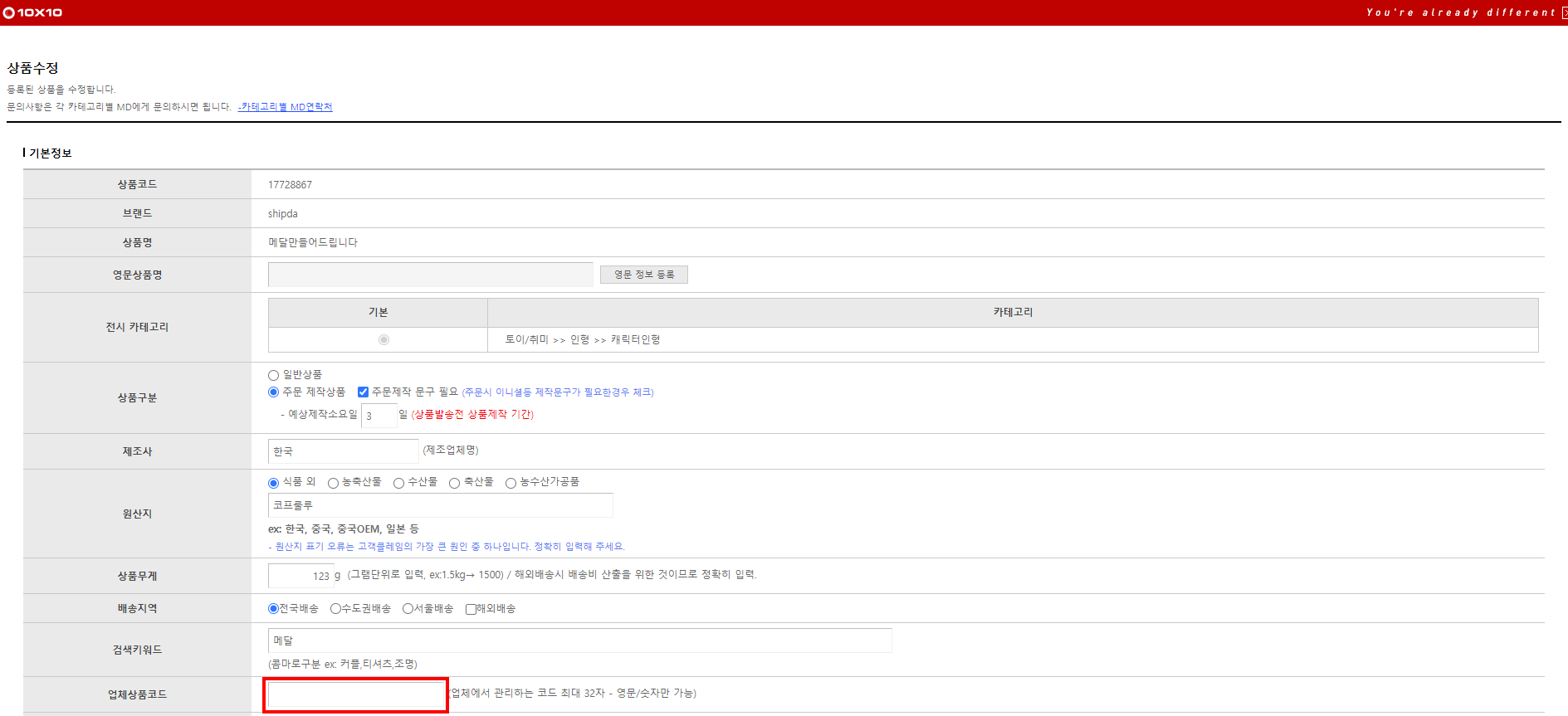
To modify the vendor product code from the registered product list, click the “Edit” button in the basic information of the product.


3. Option Information - Select if options are available.
In Product Management - In product registration, click “Use Options” in the option information to use options.
You can check the detailed information of the product, and enter the corresponding option name or add options such as color and size through additional basic options.

You can modify the options by clicking the edit button related to options/limited sales.
Check the “Option Name” from the option list.
This is entered as the “Option Information” for products integrated with the Bopul service.
(If there are 2 options, they are entered as A+B combination)

4. Option Management Code
Since the seller cannot input the option management code in 10x10, it is entered as a blank in the Bopul “Option Management Code.”
?Unlink
- If you no longer use the shopping mall, you can unlink.
- Click the “Unlink” link of the shopping mall from the list to complete unlinking.
- Orders will not be collected after unlinking.
- Already collected order information will be maintained.