[Fulfillment-Product Link Management] Connecting Smart Store Products
 After linking orders with the Smart Store, you need to match the information of the products entered in each shopping mall to the ones registered with Bopup to proceed with proper product linkage.
Check the guide below to confirm whether the product information values are correctly matched.
1. Access the Smart Store admin page.
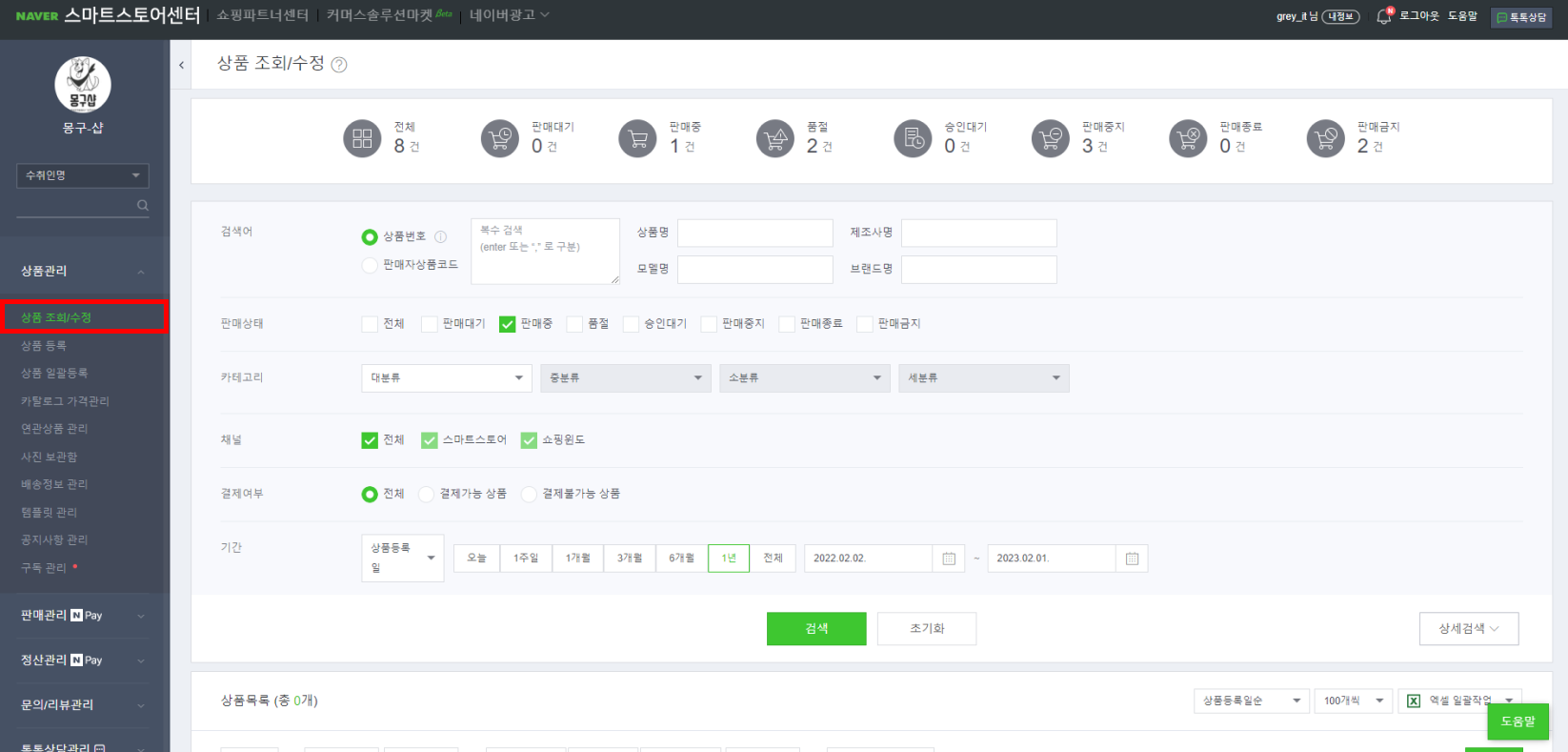
Check the Product Management - Product Lookup/Modification menu.
2. Product Number
 You can confirm the "Product Number (Smart Store)" of the registered product in the Product Management - Product Lookup/Modification menu.
This will be entered as the “Product Number” of the product linked to the Bopup service.
3. Seller Product Code
 You can confirm the "Seller Product Code" of the registered product in the Product Management - Product Lookup/Modification menu.
This will be entered as the “Seller Product Code” of the product linked to the Bopup service.
4. Option Information

You can confirm the "Option Name" of the registered product in the option list.
This will be entered as the “Option Information” of the product linked to the Bopup service.
(If there are two options, they are combined as A+B)
*Caution
Use composite options when linking optional products.
Product linking is restricted when using standalone options.
5. Option Management Code
 You can confirm the "Management Code" of the registered product in the option list.
This will be entered as the “Option Management Code” of the product linked to the Bopup service.
?Unlink
- You can unlink if you no longer use the shopping mall.
- Click the "Unlink" link of the relevant shopping mall in the list to complete the unlinking.
- Orders are not collected after unlinking.
- Existing order information remains even after unlinking.