[Fulfillment-Order Integration Management] Integrating with Godomall

To link with Godomall for order integration, you need to enter the “Partner Key” and “User Key”.
Please follow the guide below. After applying for the partner key, you can receive the user key.
1. Access Godomall Developer Center .

2. Click Open API [Open API Page].

3. Click 'Developer Registration' on the [Partner Key Application] Open API page.
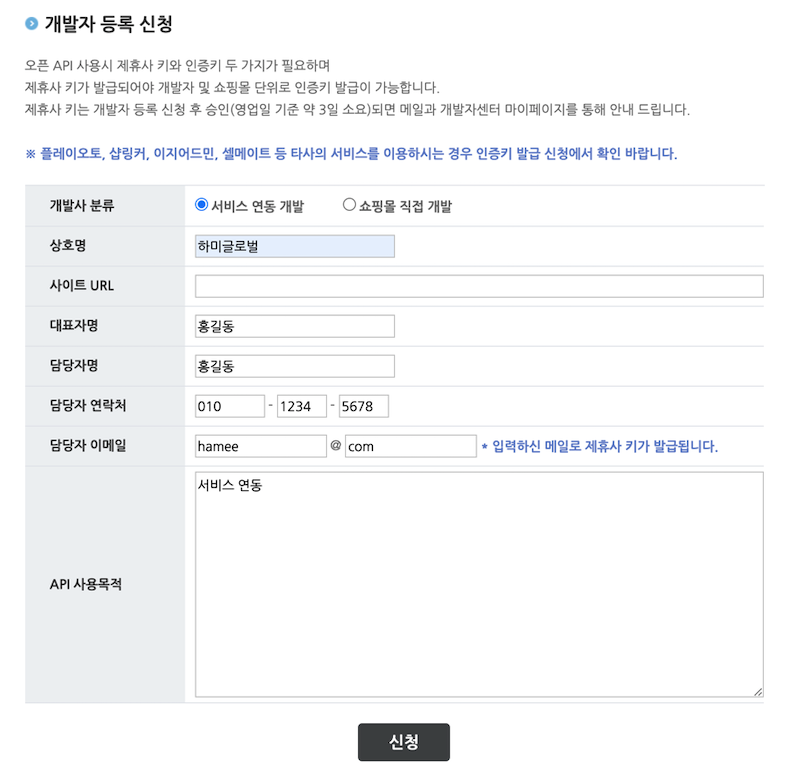
 4. Apply for developer registration in [Partner Key Application].
(The image below is a reference example.)
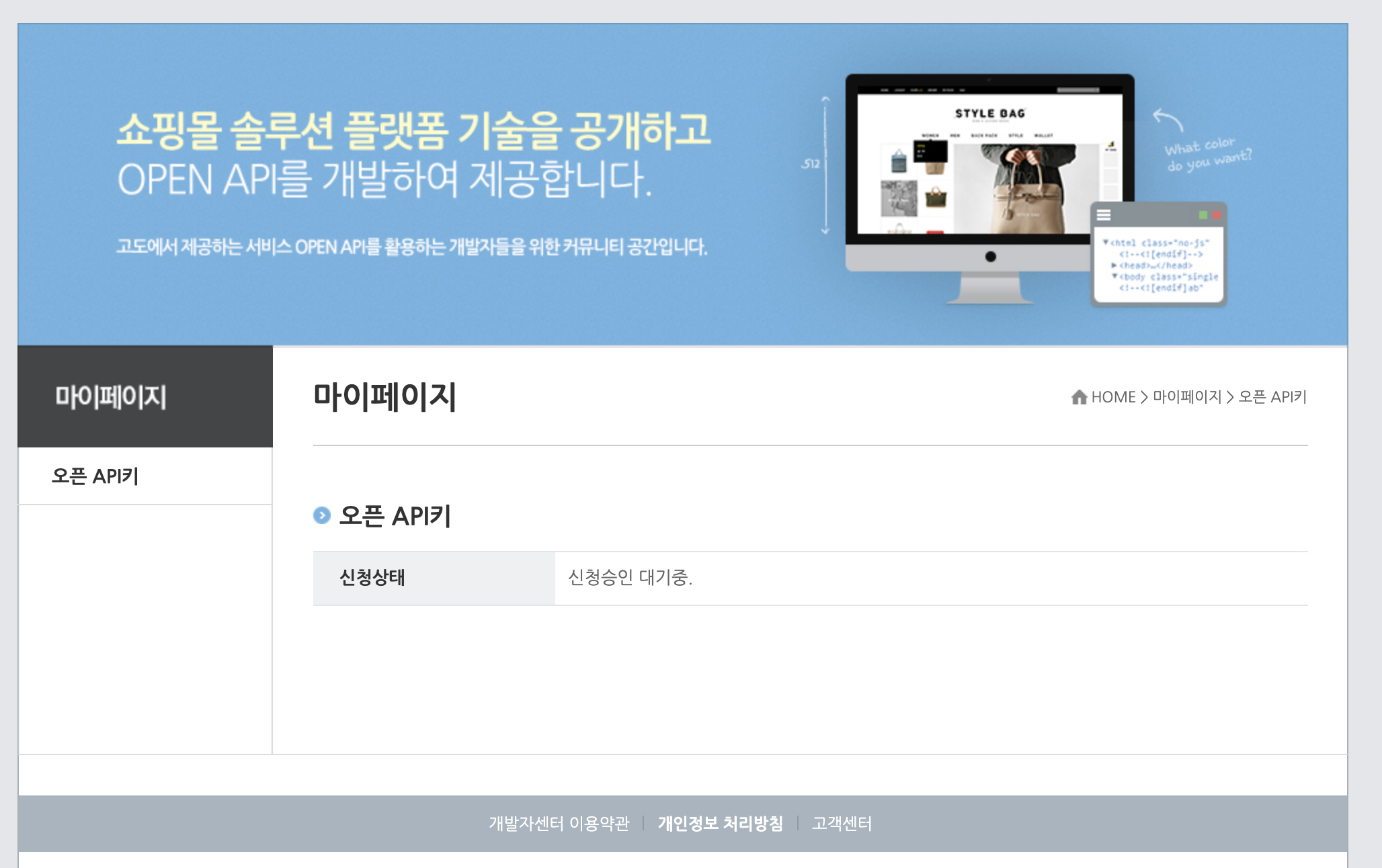
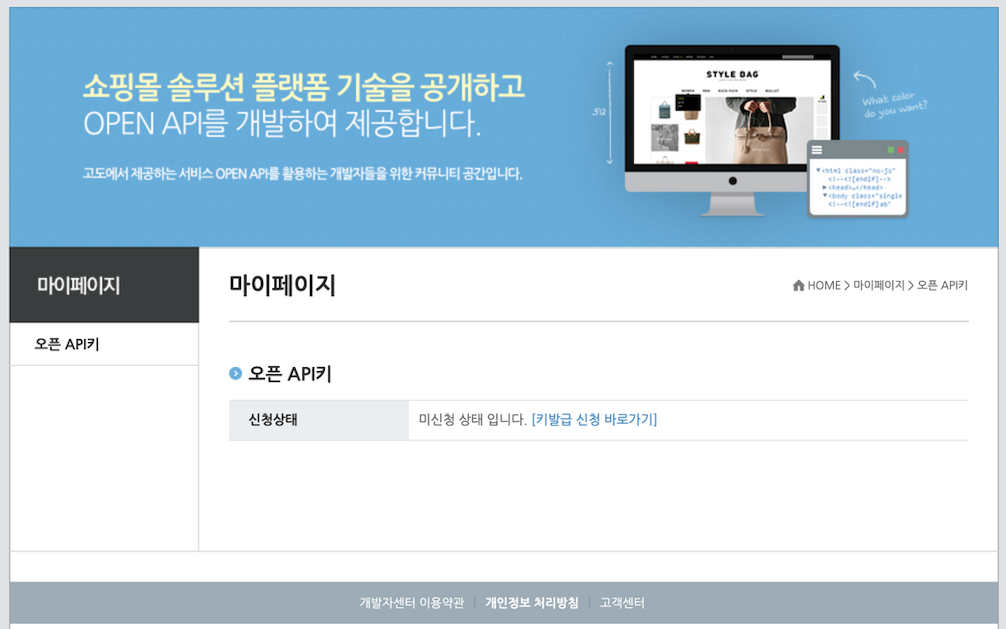
 5. After applying for [Partner Key Application], you can check the application status.
Once the approval is completed from 'Pending Approval', 'Unapplied Status [Request Key Issuance Directly]' will be displayed.
 6. After applying for [Partner Key Application], you can check the affiliate key (partner_key) value.

7. Click 'Apply for User Key' on the [User Key Application] Open API page.
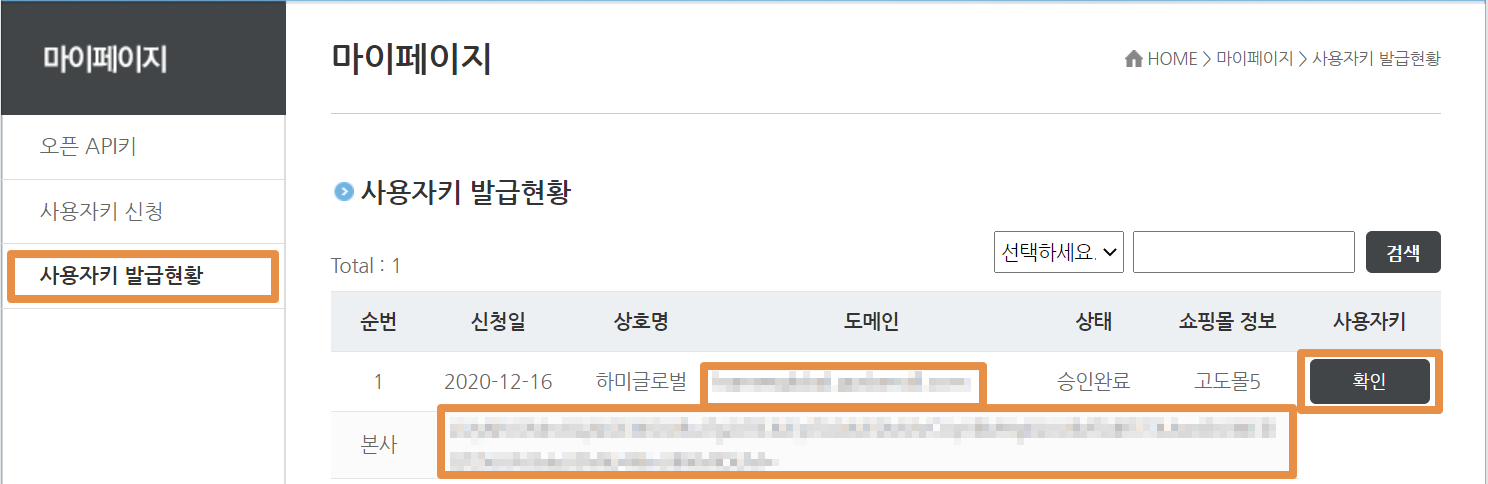
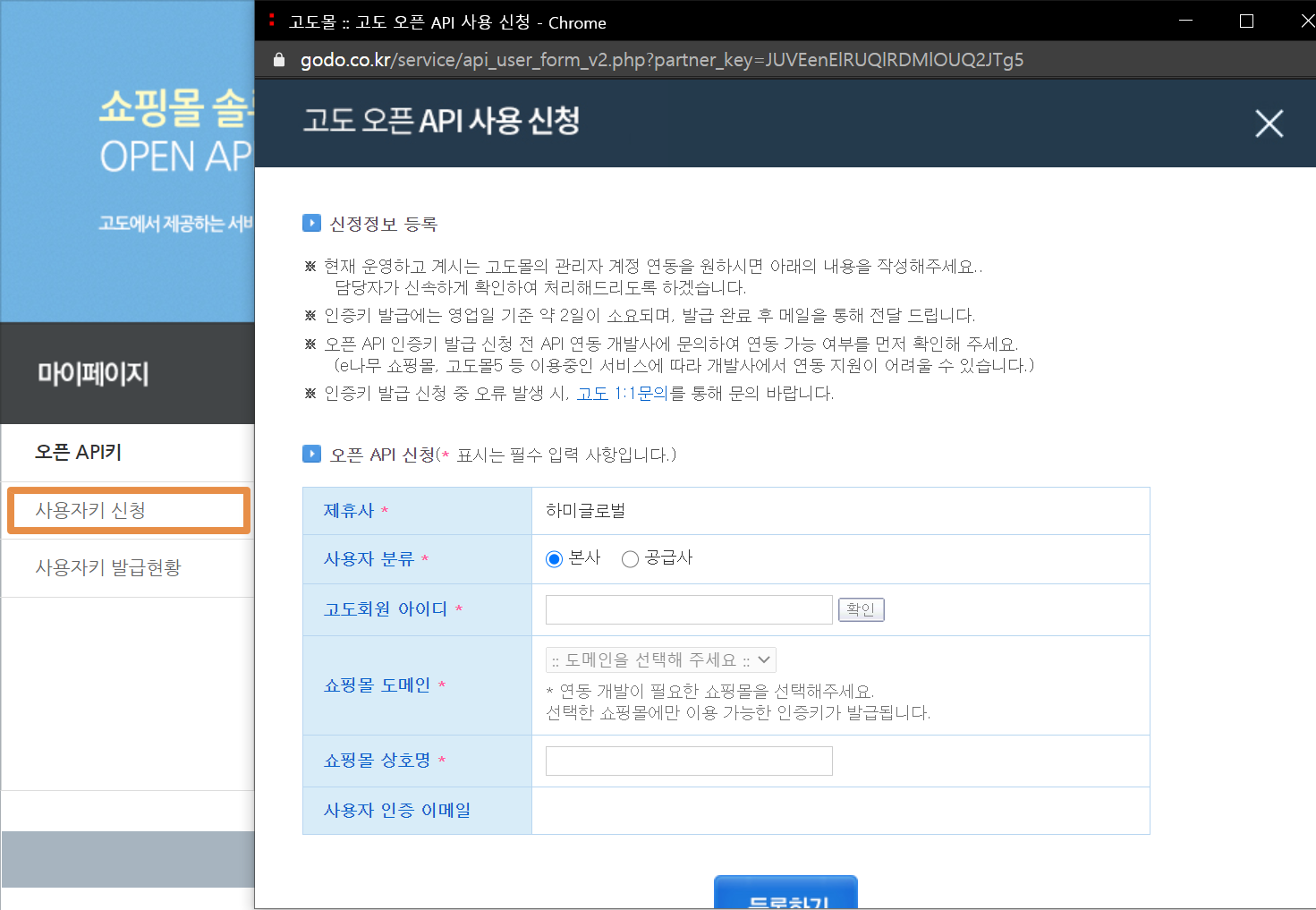 8. In [User Key Application] User Key Issuance Status > 'Check' User Key > Check the API value displayed at the bottom.
9. Select 'Godomall' integration from [My Page]-[Fulfillment]-[Order Integration Management]-[Shopping Mall Integration].
Enter the 'Partner Key' and 'User Key' for API integration verified in Godomall into the popup window. After entering, click “Agree and Integrate”.

? If the entered information does not match, an alert is displayed as shown below. Please verify the information again on the Godomall site and enter it.

10. Once the integration is completed, the integration result will be guided to the registered email, and the status will change to 'Integrating' in the list. You can also check the products registered in 'Godomall' in [My Page]-[Fulfillment]-[Order Integration Management]-[Product Integration/Unlink].
If you have successfully integrated with Godomall, Refer to the "Integrate Godomall Products" link!
?Unlink Integration
- If you no longer wish to use this shopping mall, you can unlink the integration.
- Click the “Unlink” link for the shopping mall in the list to complete the unlinking process.
- Orders will not be collected after unlinking.
- However, the order information that has already been collected will remain unchanged.