[Forwarding-Transport Management] How to Use AI Packing List Auto-Arrangement Feature
???? How to Use AI Packing List Auto-Arrangement Feature
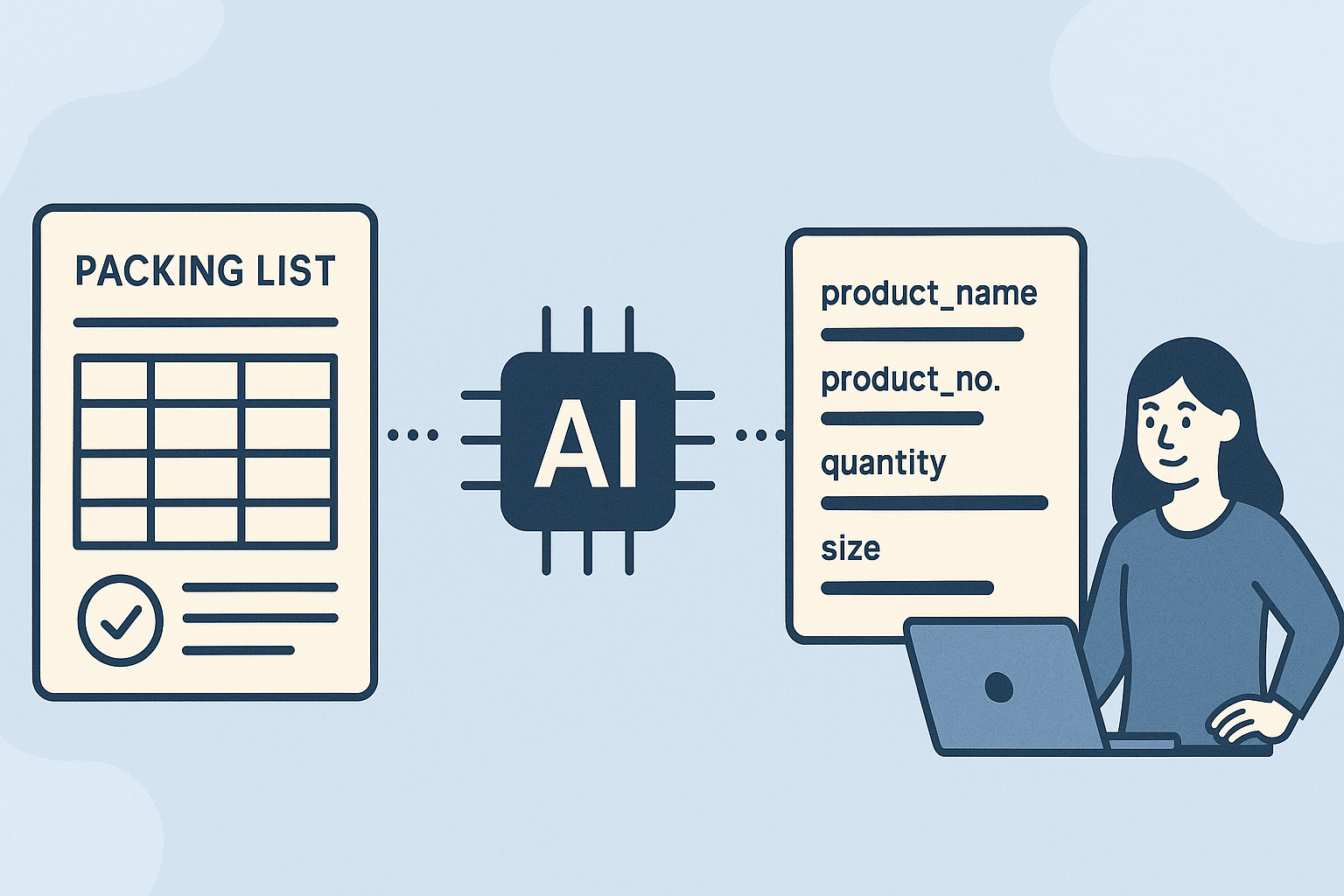
All you need is the Packing List.
Follow the steps below!
✅ Step 1. Upload the Packing List in the Documents Tab
(1) Move to the [Documents] tab on the request form screen.
(2) [Upload] the Packing List file (PDF or Excel etc.).
(※ Product information is extracted only from the Packing List. C/I is not used.)
???? If you re-upload while a file is already uploaded, all previously extracted product information will be reset. Please note this.
✅ Step 2. AI Automatically Arranges Product Information
Wait a moment after uploading, and AI will automatically arrange the information below:
(1) Product name
(2) Product number (SKU) (if available)
(3) Quantity
(4) Size (if available)
→ The sorted data is displayed in a list format by product.
✅ Step 3. Map the Container
After the product information is arranged, you need to link which product is in which container.
Depending on the situation, it is divided as follows:
▪️ If there is one container
→ Automatically linked without any additional work.
▪️ If there are multiple containers
(1) If the container number is distinguished for each product in the Packing List,
→ AI automatically divides the products by container.
(2) If there is no container distinction,
→ The user must manually link which product is in which container.
???? If the container information of the Packing List and the actual number of containers in the BL (Bill of Lading) differ, an error message will be displayed.
???? Summary of Precautions
(1) Only the Packing List is analyzed. The C/I file is ignored.
(2) Once reloaded, existing data will be reset. Make sure to proceed after checking.
(3) If there is no container information in the document, the user must manually link it.
If necessary, please contact the person in charge for quick assistance.
Thank you ????